 Privacy policy
NavisExplore · Navisworks Manage
Your controller, mapped.
Move through your model, frame a view, and save it with your Xbox controller.
Start navigating
- Connect your Xbox / XInput controller and open a model in Navisworks.
- Open LPW Add-Ins → NavisExplore → Xbox Controller Navigation.
- Release all controls to begin. Adjust Travel speed in meters per second in the controller window.

- 1
Left stick
Move forward, backward, and sideways. Press to return to Home.
- 2
D-pad
Move forward, backward, and sideways.
- 3
Right stick
Look around. Press to toggle full screen and standard screen.
- 4
X · hold
Travel at half speed. X takes priority when A and X are held together.
- 5
A · hold
Travel at four times the configured speed.
- 6
B · press
Show or hide the Saved Viewpoints window.
- 7
Y · press
Capture Viewpoint.
- 8
View / Select · press
Toggle X-ray wireframe. Press again to restore the previous render style.
- 9
Menu / Start · press
Set the current view as Home.
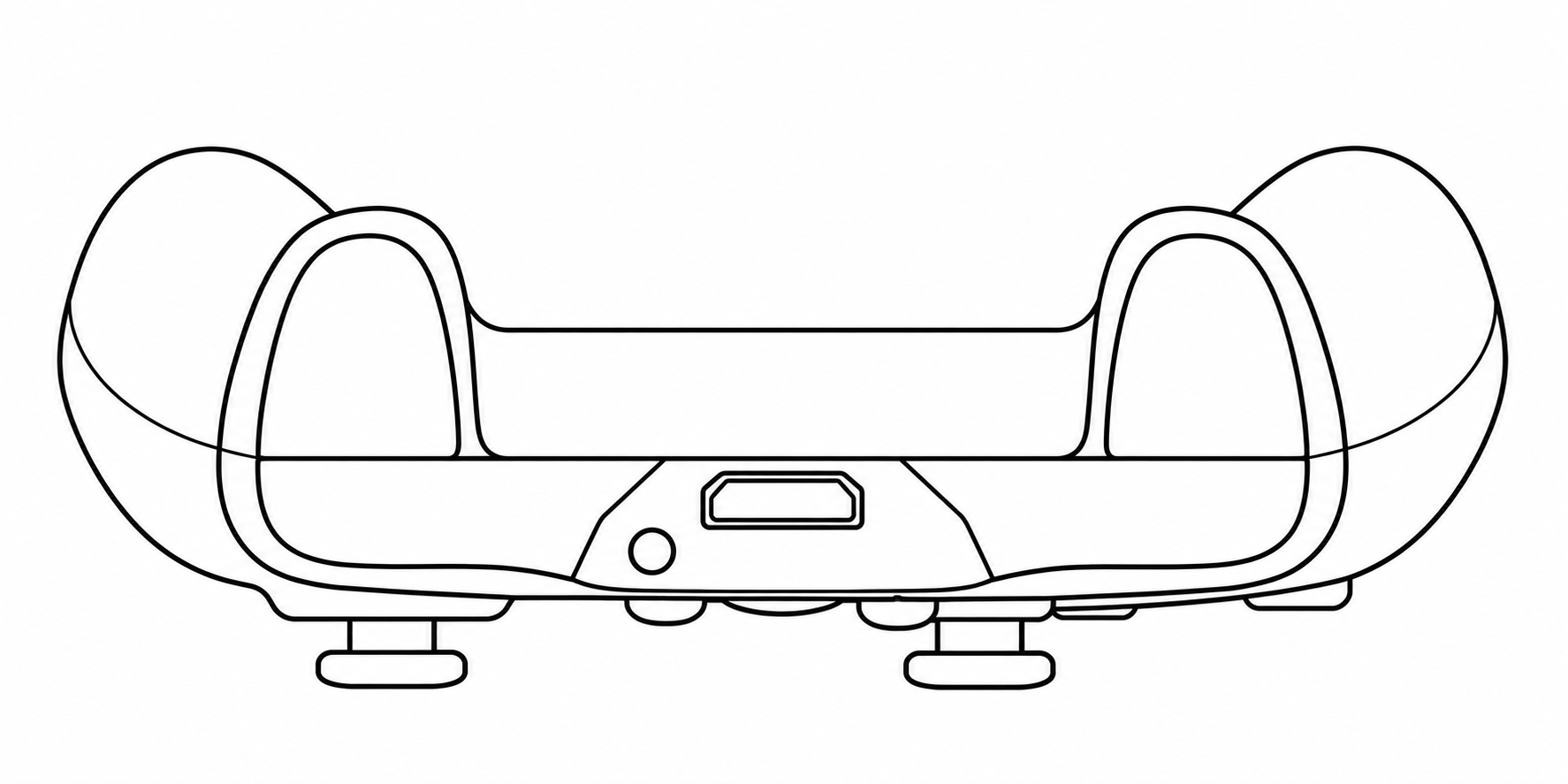
- 10
LT · squeeze
Zoom out.
- 11
RT · squeeze
Zoom in.
- 12
LB · hold
Move down.
- 13
RB · hold
Move up.
Good to know
- Pause at any time. Uncheck Enable controller to pause, or close the controller window to stop. Input also pauses when you switch away from Navisworks. Release the controls when returning.
- Save your views. Y creates a Saved Viewpoint with an “LPW” name prefix, not an image file. Save your Navisworks document to retain captured viewpoints.
- X-ray uses wireframe. Capturing a viewpoint while X-ray is enabled saves that render style with it.
- The Xbox / Guide button is unmapped. The Guide button in the add-in opens this website and requires an internet connection.